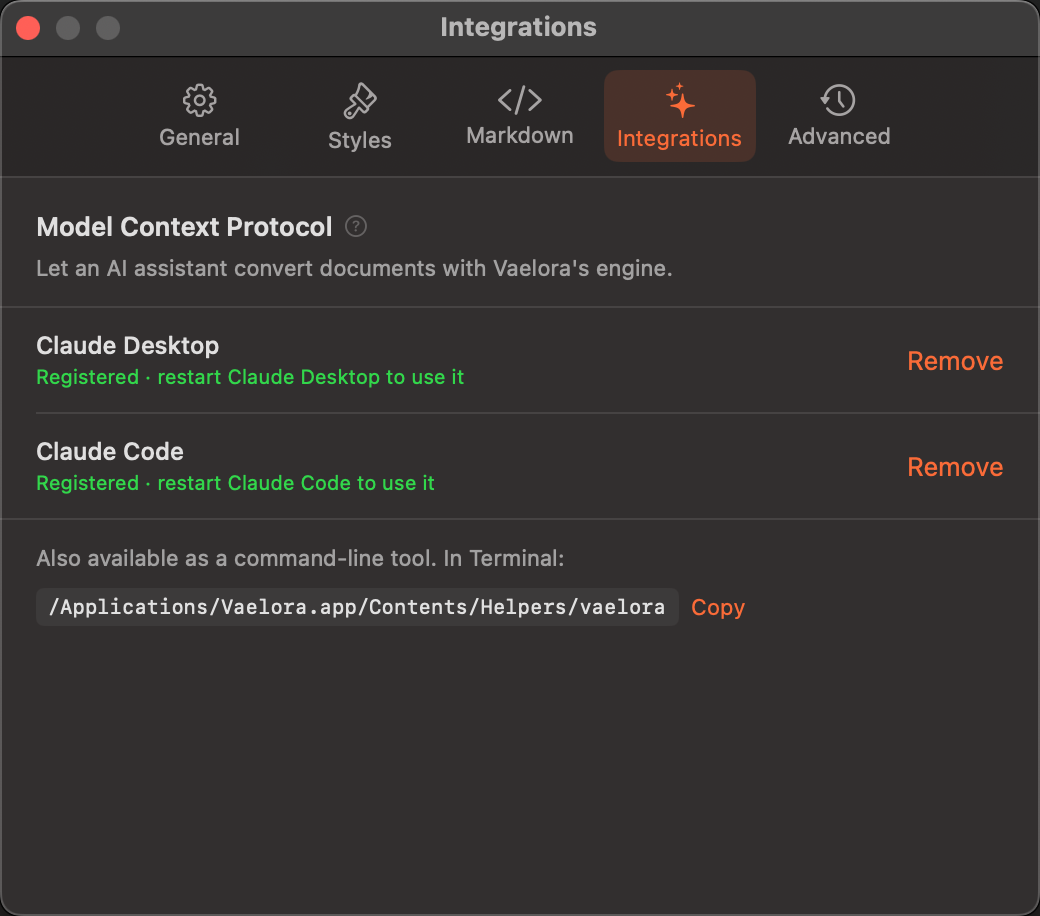
Vaelora bundles an MCP server and a command-line tool that run the same conversion engine as the app — headless. Register once, and "turn these notes into a PDF" becomes something your assistant just does.
Open Settings ▸ Integrations and add Vaelora to Claude Desktop or Claude Code. Prefer the terminal? vaelora mcp install claude-desktop does the same thing.
Vaelora.app/Contents/Helpers/vaelora.Every tool returns a file path and a summary — never PDF bytes. A conversion costs your assistant a handful of tokens, however long the document is.
Markdown in, finished PDF out — with any style, page setup, headers and footers, numbering, and cleanup options. Returns the output path and a page summary.
A dry run: how the document would paginate — pages, headings, warnings — without writing anything. Lets an assistant check before it commits.
Every built-in style plus your own, by name — so "make it look like a technical report" resolves to the real thing.
Your saved conversion presets, ready to apply — the same ones the inspector shows, shared with the app.
The same helper is a plain CLI. Put it in a Makefile, a git hook, a cron job — anywhere a document should become a PDF without anyone watching.
# Markdown in, PDF out vaelora export report.md -o report.pdf \ --style technical-report --page-size a4 # Show the settings, render nothing vaelora export report.md --dry-run # What's in the library vaelora styles vaelora presets # Wire up an assistant vaelora mcp install claude-desktop vaelora mcp status
The app, the CLI, and the MCP server are all projected from one shared option table — and a test fails the build if a setting exists that the headless surfaces can't reach. Feature parity isn't a promise; it's enforced.
Download Vaelora, open Settings ▸ Integrations, click Add. Then ask your assistant for a PDF.
The direct-download build reads and writes files anywhere you can. The Mac App Store build is sandboxed: it takes Markdown inline and writes to Downloads.